
Edit content and blocks
What this is
The editor lets you set up your header, add blocks, and arrange them with drag-and-drop.
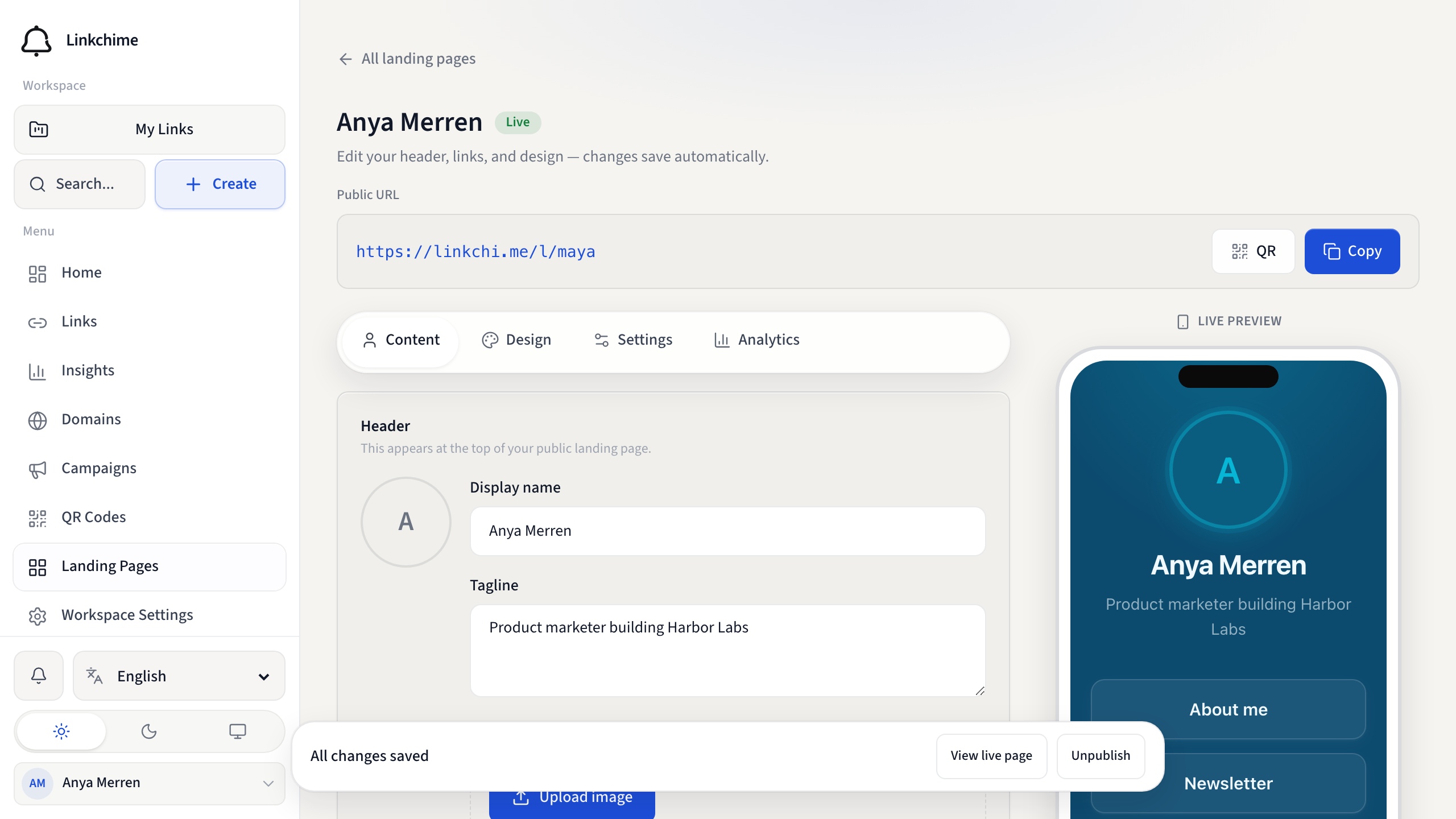
Before you start
- You have a landing page open in the editor.
Steps
Header
- Open the Content tab (or Editor).
- Under Header, set:
- Display name
- Tagline — a short description
- Avatar image — upload or paste a URL (square images work best)
Add blocks
- Under Links & buttons, click a block type to add it.
- Choose a block type:
- Link — a text link to a URL or tracked short link
- Button — a call-to-action button
- Social — a social profile link (Instagram, X, YouTube, etc.)
- Text — a short paragraph for notes or section intros (up to 500 characters)
- Divider — a thin line between sections
- For links, buttons, and socials, set the Label and URL (or select a Tracked link from your workspace).
- For text, enter the body in the text field. Dividers need no label.
- Repeat for each block you want.
Reorder and visibility
- Drag blocks to reorder them.
- Click Hide on page to hide a block without deleting it.
- Click Show on page to make it visible again.
What happens next
Changes save automatically. Use the phone preview on the right to see how your page looks.
Tips
- Tracked link destinations use your workspace short links for click tracking.
- Leave a URL blank on a link or button to show a non-clickable label.
- Text and divider blocks are not clickable and do not generate click analytics.
Related pages
Denemeye hazır mısınız?
Ücretsiz bir hesap oluşturun ve bu rehberleri bir sonraki kampanyanızda kullanın.