Navigate the app
What this is
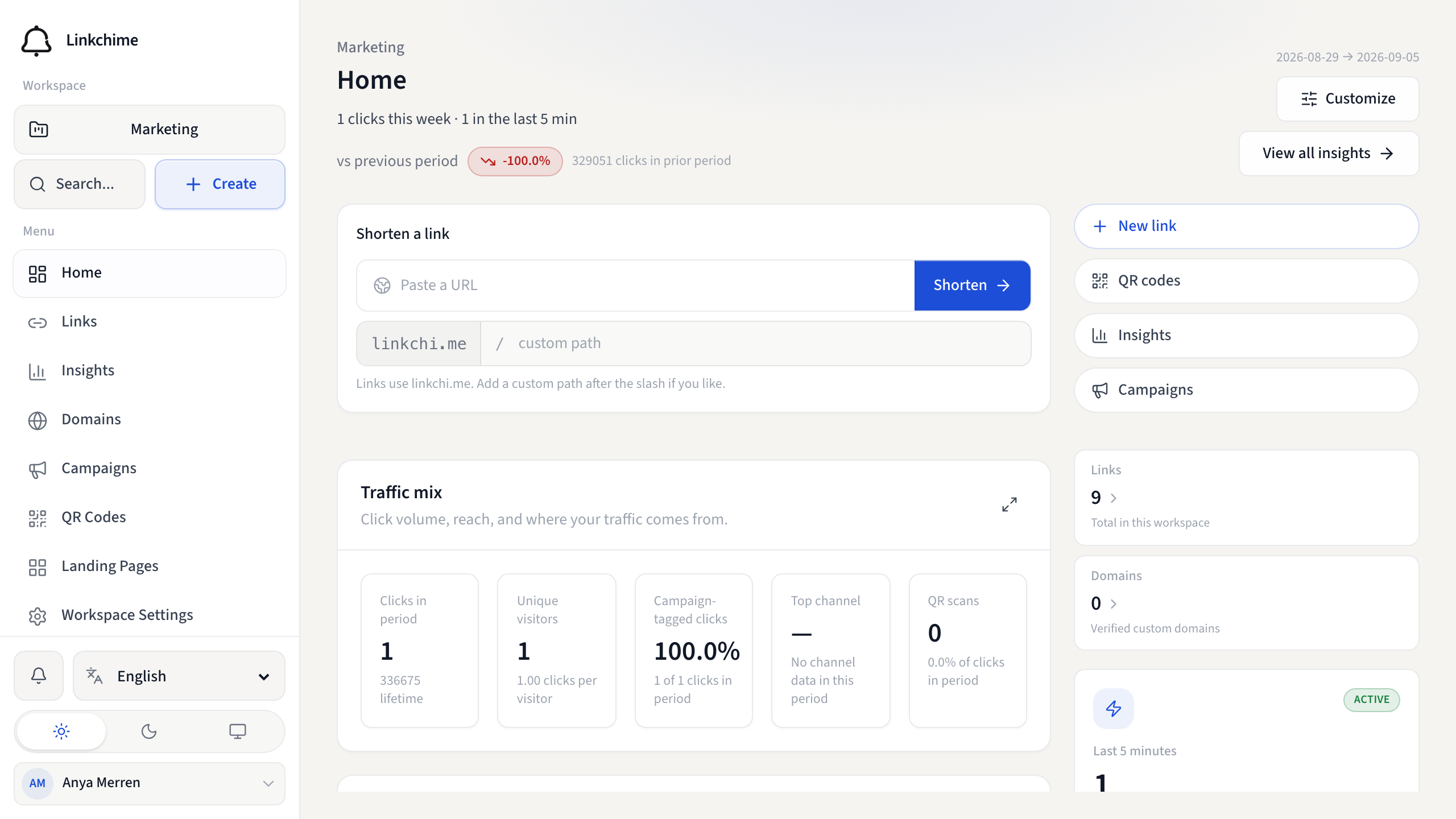
Linkchime is organized around a sidebar (desktop), a tab bar (mobile), and a user menu. This page shows where to find everything.
Before you start
- You're signed in to Linkchime.
Main navigation
On desktop, the sidebar on the left includes:
| Item | What it does |
|---|---|
| Home | Dashboard with quick shorten, shortcuts, and recent links |
| Links | All your short links |
| Insights | Workspace analytics |
| Domains | Custom domains |
| Campaigns | Links grouped by campaign |
| QR Codes | Links with QR codes |
| Landing Pages | Link-in-bio pages |
| Workspace Settings | Workspace preferences |
On mobile, Home, Links, Insights, and Search appear in the bottom tab bar. Tap More for Domains, Campaigns, QR Codes, Landing Pages, and Settings.
User menu
Click your profile icon (top right) to open the account menu:
- Account — profile and security settings
- My Plan — usage and billing
- Workspace Settings — same as the sidebar item
- Help & support — external help link (if configured)
- Sign out
Workspace switcher
At the top of the sidebar, the workspace name shows your active workspace. Click it to:
- Switch to another workspace
- Create a new workspace
- Rename or delete a workspace (owner only)
Theme and language
- Theme — switch between light, dark, and system appearance (available in the sidebar footer or mobile More menu).
- Language — switch between English and Turkish (if both are enabled).
Tips
- Press ⌘K (Mac) or Ctrl+K (Windows) to open Global search from anywhere.
- The floating Assistant button opens the AI assistant.
Related pages
Denemeye hazır mısınız?
Ücretsiz bir hesap oluşturun ve bu rehberleri bir sonraki kampanyanızda kullanın.