
Date ranges and filters
What this is
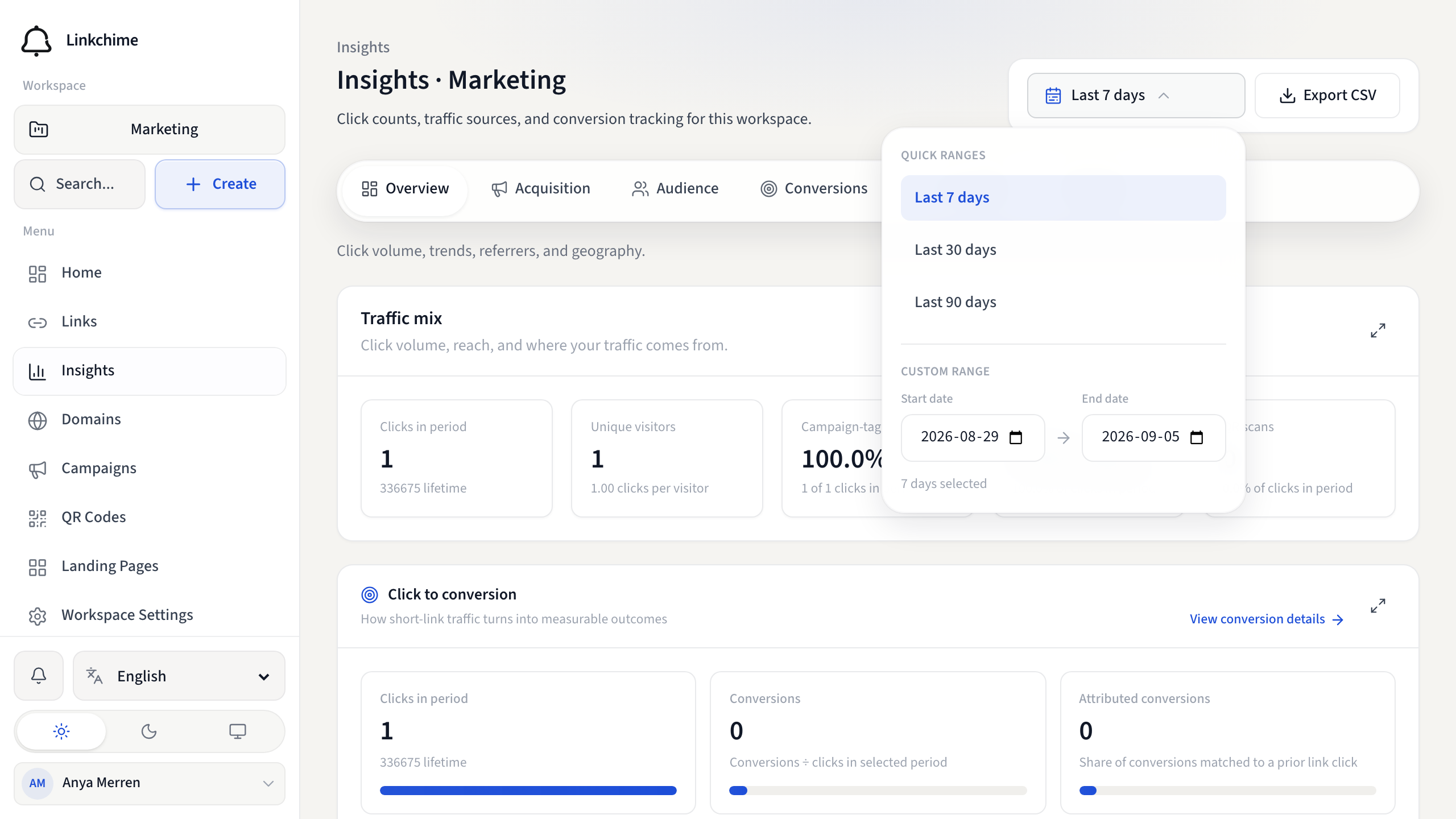
Insights data is filtered by a date range. You can pick quick presets or choose custom start and end dates.
Before you start
- You're on the Insights page or a link's Insights tab.
Steps
- Open Insights from the sidebar.
- Click the date range control at the top.
- Choose a quick range:
- Last 7 days
- Last 30 days
- Last 90 days
- Or select Custom range, then set Start date and End date.
- The dashboard updates to show data for the selected period.
What happens next
All tabs and charts reflect the chosen date range. Lifetime totals may appear alongside period counts on some cards.
Tips
- Compare periods by noting the "vs previous period" indicators on trend charts.
- Shorter ranges work well for live campaigns; longer ranges for seasonal trends.
Related pages
Denemeye hazır mısınız?
Ücretsiz bir hesap oluşturun ve bu rehberleri bir sonraki kampanyanızda kullanın.