
Conversion goals
What this is
Track when visitors complete an action (sign-up, purchase, etc.) after clicking your short link. You add a small tracking pixel to your thank-you page.
Before you start
- Conversion goals must be available on your plan.
- You have a link open on its detail page.
Steps
- Open a link and go to the Insights tab (or Settings if goals are configured there).
- Find Conversion tracking.
- Click Set up conversion tracking or Manage conversion goals.
- Click to add a new goal.
- Enter a Goal name (for example
Signup) and Goal slug (for examplesignup). - Copy the tracking pixel URL or code shown.
- Paste the pixel on your thank-you page, confirmation screen, or post-purchase email.
- Save the goal.
What happens next
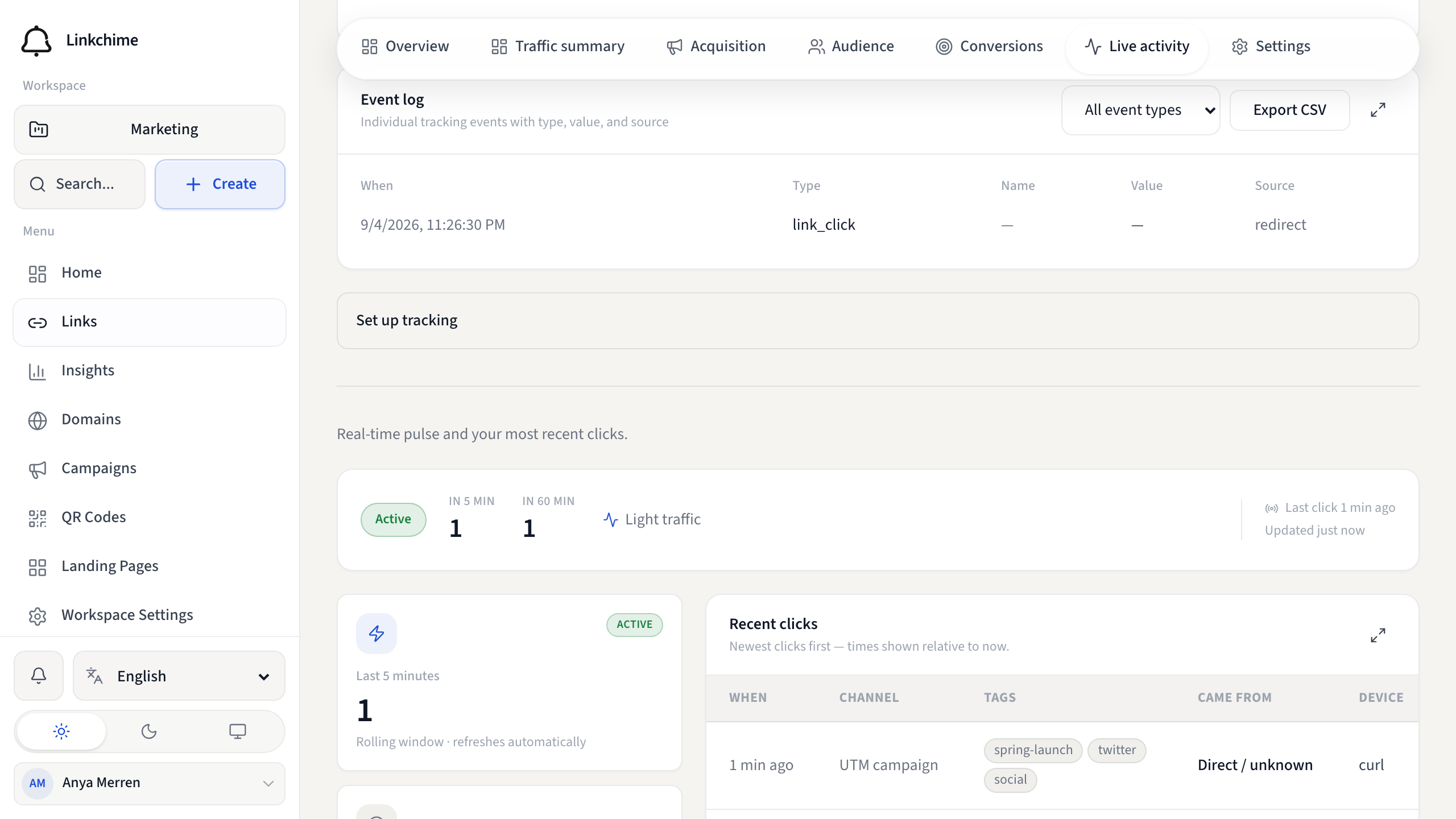
When a visitor completes the action on a page with the pixel, a conversion is recorded in Insights under Conversions. Conversions are matched to prior link clicks within your conversion window.
Tips
- The goal slug appears as
?goal=your-slugin the pixel URL. - Set up goals on your highest-traffic links first.
- See Conversions tab for reporting.
Related pages
Denemeye hazır mısınız?
Ücretsiz bir hesap oluşturun ve bu rehberleri bir sonraki kampanyanızda kullanın.